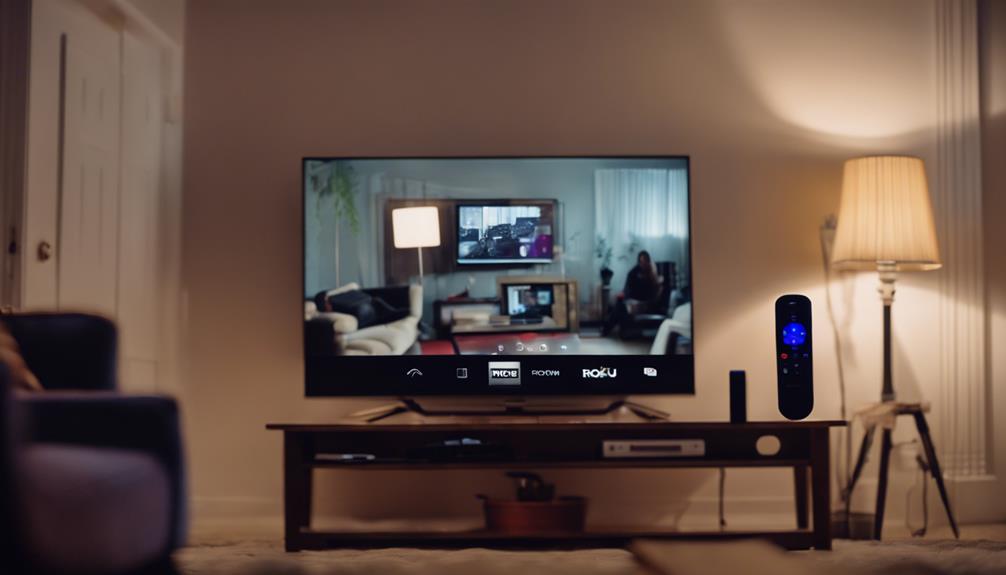

A Roku device cannot be turned into a spy camera by installing an app. Roku hardware is designed primarily to receive and display video; it does not provide the camera hardware needed to capture footage. A safer and more accurate approach is to use Roku as a convenient screen for viewing an authorized home security camera or other compatible video source.
Use Roku as a Camera Display
If you already have a security camera, check whether its manufacturer provides a Roku channel or another officially supported way to view the camera feed. Availability and features vary, so follow the camera maker’s instructions rather than installing software from an unknown source.
Roku can be useful in this setup because it lets you view a supported live feed on a television. The camera remains responsible for capturing and transmitting video, while Roku acts as the display device.
Set Up the Camera Responsibly
Place the camera where it serves a legitimate security purpose, such as monitoring an entrance, driveway, or shared living area. Avoid locations where people reasonably expect privacy, including bathrooms, bedrooms, and changing areas. Do not conceal a camera to record people without their knowledge or permission.
Before mounting the camera, check the view for:
- Clear visibility of the area you intend to monitor
- Appropriate lighting at the times you need coverage
- Minimal glare, obstructions, and distracting movement
- Unintended views into neighbors’ homes or private spaces
Connect the Devices
Connect the camera and Roku to your home network according to their respective setup instructions. If the camera’s supported Roku channel requires both devices to be on the same network, confirm that connection before attempting to view the feed.
Open the approved camera channel on Roku and sign in only through the official interface. Test the feed while you are near the camera so you can confirm that the picture, sound, and viewing angle are appropriate. If the camera supports motion alerts or recording, configure those features through the camera’s own settings.
Protect Remote Viewing
Remote access can expose live video and recorded footage if the account or camera is poorly secured. Use a unique, strong password for the camera account and enable two-factor authentication when it is available. Keep the camera, Roku, router, and related apps updated through their official update processes.
Also review account permissions and remove access for anyone who no longer needs it. Avoid sharing camera credentials through messages or using the same password on multiple services. If a camera offers privacy shutters, recording schedules, or the ability to disable remote access, use those controls when monitoring is not necessary.
Respect Privacy and Local Rules
Video and audio recording laws differ by location. Audio may receive additional legal protection, and recording guests, employees, tenants, or visitors can require notice or consent. Make sure everyone affected understands what is being recorded, where cameras are positioned, and who can view the footage.
Store only the footage you genuinely need and delete older recordings according to a reasonable retention policy. Do not use a Roku-connected camera to secretly monitor another person. The goal should be transparent, authorized security—not covert surveillance.
A Practical Roku Security Setup
A responsible arrangement uses a dedicated security camera for capture, the camera’s official service for management, and Roku as a television-based viewing screen. This setup avoids unsupported “spy camera” software while still allowing you to check an authorized live feed conveniently at home.
In short, Roku itself is not a hidden camera. Use it as part of a clearly disclosed, properly secured home-monitoring system, and confirm that your equipment, account settings, and recording practices respect both privacy and applicable law.