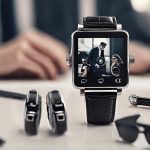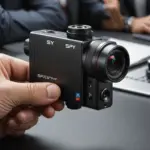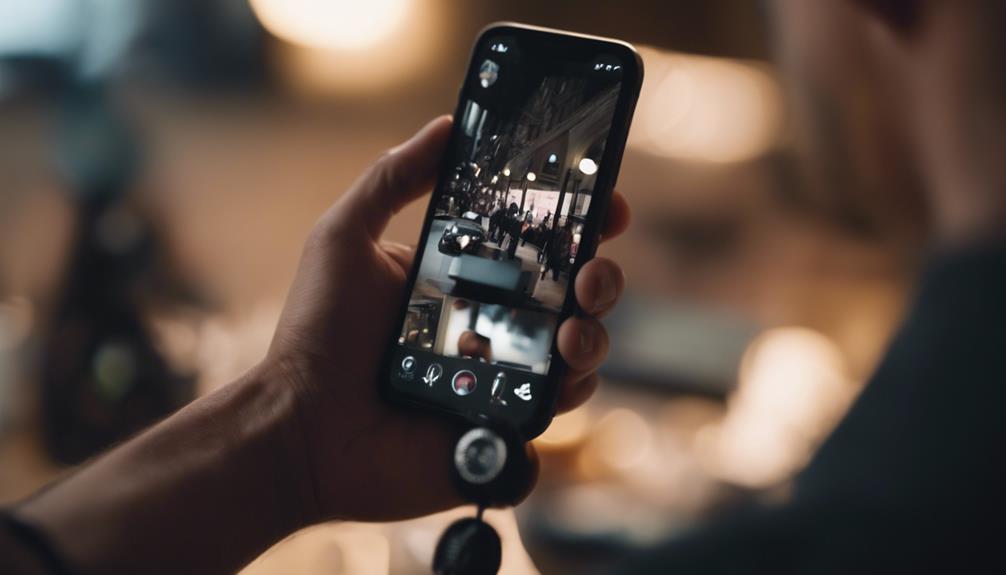

Live streaming a compact camera to your phone can be useful for checking an authorized property, watching a room you control, or monitoring equipment while you are away. Before installing any camera, respect privacy and follow applicable laws. Do not place a camera in bedrooms, bathrooms, changing areas, or other places where people reasonably expect privacy. If other people may be recorded, obtain any required consent.
1. Choose a Compatible Camera
Start with a camera that supports remote viewing through a smartphone app. Check the product specifications and confirm that the camera works with your phone’s operating system before purchasing or installing it.
Consider the following features:
- Video resolution: Higher resolution can produce a clearer live view, although it may require more bandwidth and storage.
- Network support: Confirm whether the camera connects through Wi-Fi and whether it requires a particular wireless band or router configuration.
- Power: A continuously powered camera is generally more suitable for extended monitoring than one that relies only on a small battery.
- Low-light performance: If the camera will operate in dim conditions, check whether it offers a suitable night or low-light mode.
- App compatibility: Use the manufacturer’s stated app and check that it is still available for your device.
2. Position and Prepare the Camera
Place the camera in a location that gives you the required view without recording private areas. Mount it securely and make sure the lens has a clear line of sight. Avoid positioning it behind glass, near strong light sources, or where objects can easily block the image.
Connect the camera to power, if required, and clean the lens before testing it. The installation area should also have a dependable Wi-Fi signal. If the signal is weak, reposition the camera or improve the network coverage rather than relying on an unstable connection.
3. Install the Official Streaming App
Download the app identified in the camera’s instructions from your phone’s official app store. Open it, create or sign in to an account if necessary, and follow the setup prompts to add the camera.
Grant only the permissions the app needs for its functions. Depending on the device, this may include access to the local network, notifications, or the phone’s camera for scanning a setup code. Use a strong, unique account password and enable any available account security options.
4. Connect the Camera and Phone
Follow the app’s pairing instructions. Many cameras require the phone and camera to use the same Wi-Fi network during initial setup. Enter the correct network password or scan the supplied setup code, then wait for the app to confirm the connection.
If pairing fails, work through these checks:
- Confirm that the camera is powered on and within range of the router.
- Check that the phone is connected to the intended Wi-Fi network rather than mobile data or a guest network.
- Verify that the camera model is supported by the installed app.
- Restart the camera, phone, and router if the connection appears stuck.
- Review the manufacturer’s instructions if the camera requires a specific Wi-Fi band or reset procedure.
5. Start and Adjust the Live Stream
Once the camera appears in the app, select it to open the live view and use the streaming control provided by the app. Test the feed from the location where you intend to use it, rather than assuming that a successful pairing guarantees a reliable stream.
If the video is delayed, pixelated, or frequently disconnects, reduce the stream resolution or frame rate and move the camera closer to the router. Higher-quality video generally requires more network capacity and can use more mobile data when your phone is not connected to Wi-Fi. For that reason, use a stable Wi-Fi connection where possible and check the app’s data settings before watching for long periods.
Keep the System Secure
Change any default camera password, keep the camera’s software and phone app updated, and remove access for accounts or devices you no longer use. Review the camera’s privacy settings and disable remote access when it is not needed. Regularly check the live view to ensure the camera has not shifted and is not capturing areas outside the purpose for which it was installed.
With a compatible camera, a stable network, the correct app, and privacy-conscious placement, you can view an authorized camera feed from your phone with fewer connection and security problems.