
Using an adult website does not require you to give up control of your privacy. The most effective approach is to protect different parts of your digital life separately: control who can see your account activity and uploaded content, prevent unwanted camera access, and keep the device you use properly secured.
The following three steps can help reduce privacy risks while browsing Xhamster or using other online platforms. Settings and menu names may vary by device, browser, or website, so review the available options carefully and choose the level of privacy that suits you.
1. Review your account and browser privacy settings
Start with the privacy controls associated with your account. Check who can view your profile, videos, photos, or other uploaded material. If the platform offers a private-account option, consider enabling it when you want to limit access to approved users rather than making content broadly available.
Useful settings to review
- Whether your profile and uploaded content are public or restricted.
- Who can contact you, follow your account, or interact with your posts.
- Whether activity, likes, subscriptions, or other account details are visible.
- Which notifications are sent to your device or email address.
- Whether your browser allows the site to use your camera, microphone, or location.
Camera and microphone permissions are usually controlled in the browser or device settings rather than by a website privacy page. If you do not need video or audio features, deny those permissions or set them to “Ask” so access requires your approval. Review these controls periodically, especially after installing a new browser, changing devices, or using a shared computer.
2. Physically cover cameras when they are not in use
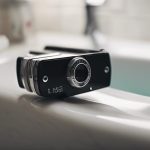
A webcam cover provides a simple physical barrier between your camera lens and the room around you. Sliding the cover closed when you are not using video can help prevent unwanted visual access if an application, browser extension, or malicious program attempts to activate the camera.
This is a useful privacy measure for laptops, monitors, and other devices with built-in cameras. A purpose-made sliding cover is generally more convenient than improvised materials, but whatever solution you use should not damage the lens or interfere with closing the device. Remember that a cover only blocks the image; it does not disable the microphone or protect other information on the device.
For stronger protection, combine a camera cover with permission controls. Remove camera access from applications that do not need it, and pay attention to camera-use indicators or permission prompts that appear unexpectedly. If you use a camera regularly, open it only when necessary and close the application when finished.
3. Perform regular device security checks
Privacy settings are less effective if the device itself is poorly maintained. Keep the operating system, browser, security software, and installed applications updated so that available security fixes are applied. Updates should come from the device manufacturer, software developer, or another trusted source.
A practical security checklist
- Install operating-system and browser updates promptly.
- Run regular security or malware scans using reputable security software.
- Review installed applications and browser extensions, removing anything unfamiliar or unnecessary.
- Check which applications have camera, microphone, storage, and notification permissions.
- Use a strong, unique password for your account and enable additional sign-in protection if it is available.
- Use secure connections and avoid entering account details on suspicious pages or through unsolicited links.
If your camera activates unexpectedly, an unfamiliar application appears, or your device behaves unusually, stop using the camera and review recent installations and permissions. Run a security scan, install pending updates, and change important passwords from a device you trust if you suspect unauthorized access.
Build privacy habits that last
No single setting can prevent every privacy problem. Account controls limit who can view your content, a webcam cover reduces the risk of unwanted visual access, and regular security checks help address weaknesses on the device itself. Reviewing all three areas from time to time gives you better control over your personal information and makes private browsing habits more consistent.