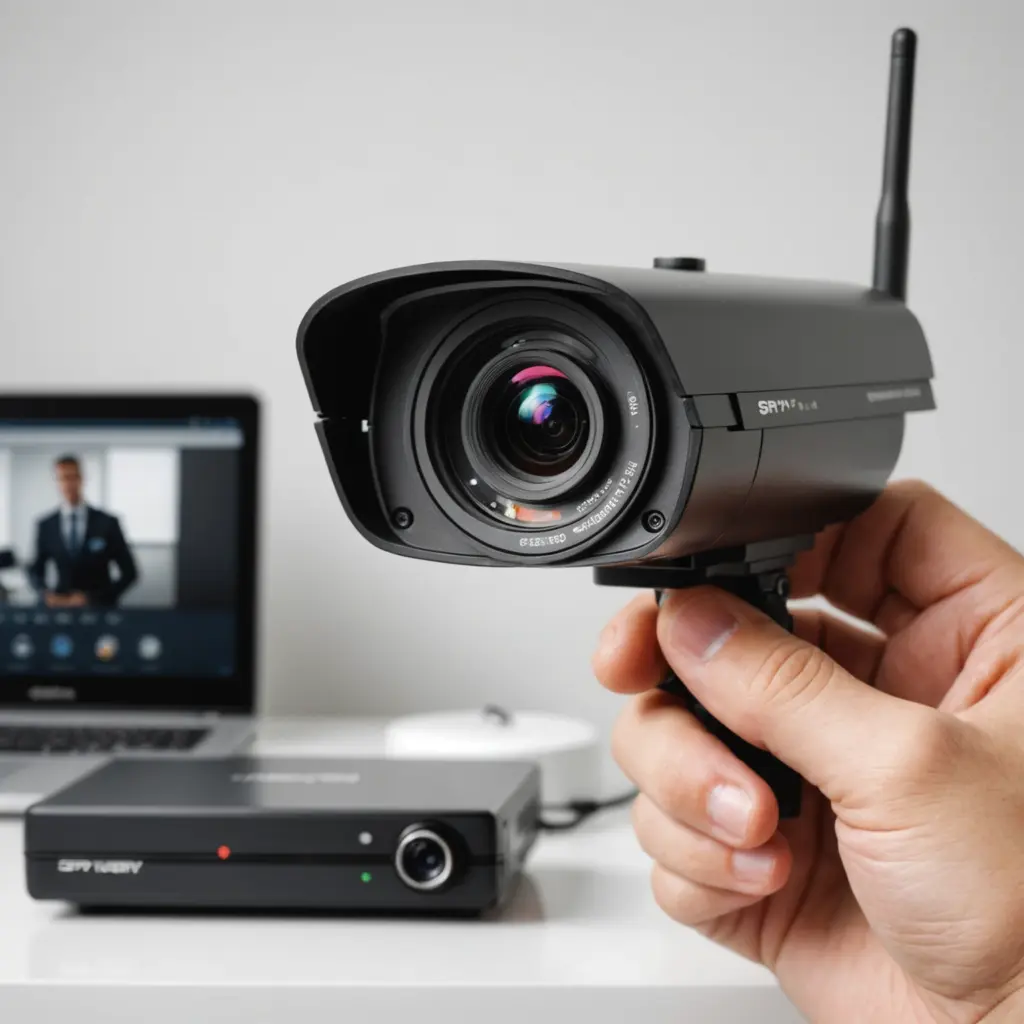

Remote viewing lets you check a compatible camera’s live feed or recorded footage from a phone or computer when you are away from home. It can be useful for monitoring your property, checking on family members who have agreed to be recorded, or reviewing activity near an entrance. However, remote access also creates security and privacy responsibilities, so the camera should be configured carefully from the beginning.
How remote camera viewing works
Most cameras that support remote access use one of two connection methods:
- Cloud-based access: The camera connects to the manufacturer’s service, and the companion app retrieves the live feed or recordings after you sign in. This is usually the simplest option because the service handles much of the connection process.
- Direct network access: The camera or a network video recorder connects through your home network. Remote access may require router configuration, a virtual private network, or other networking features.
Check the camera’s documentation before changing network settings. Some models support remote viewing only through a specific app, while others may work with a recorder or local network software. Features such as RTSP or ONVIF can provide additional compatibility, but they may require more technical configuration than a standard cloud-based app.
Setting up remote access
Begin by connecting the camera to your home Wi-Fi network according to the manufacturer’s instructions. Create an account if the camera requires one, install the official app, and add the camera to your account. Sign in from the phone or computer you plan to use for remote viewing.
Test the feed while your device is connected to the same home network. Then test it again using a different connection, such as mobile data. This confirms that remote access works outside your home rather than only on the local network.
For a camera that requires direct access, the setup may involve assigning the device a consistent local address, configuring router rules, or using a network video recorder. Dynamic DNS may help when the home internet connection uses a changing public IP address. A VPN is another option: it lets an authorised user connect to the home network securely instead of exposing the camera directly to the public internet.
Protect the camera and its footage
A remotely accessible camera can become a target if its account or network is poorly protected. Apply these safeguards:
- Use a long, unique password for the camera account and avoid reusing it elsewhere.
- Turn on two-factor authentication when the camera service offers it.
- Install firmware and app updates from the manufacturer.
- Use encrypted connections and reputable services where available.
- Avoid unnecessary port forwarding and disable remote features you do not use.
- Review account sessions, shared users, and access permissions periodically.
- Change or remove access promptly when someone no longer needs to view the feed.
Also secure the home router with its own strong administrator password and current firmware. If several people need access, use separate accounts or the camera service’s permission controls instead of sharing one login.
Fixing common remote-viewing problems
The camera cannot be reached
Confirm that the camera has power and is connected to the router. Check the app for an offline status or service alert, then restart the camera and router if necessary. If local viewing works but remote viewing does not, the issue may involve the cloud service, firewall, router configuration, or VPN connection.
The video is delayed or poor quality
Remote viewing depends partly on the upload capacity of the home internet connection. Lowering the camera’s resolution or frame rate can reduce buffering. Improving Wi-Fi coverage, moving the camera away from sources of interference, or using Ethernet where practical may also help. A weak connection at the viewing location can cause similar symptoms.
Login or authorisation errors appear
Recheck the account details, confirm that the app is up to date, and verify that the correct camera account is being used. If you suspect that credentials have been exposed, change the password and review all authorised devices.
Privacy and legal responsibilities
Rules for recording vary by location, and video surveillance may be restricted in places where people reasonably expect privacy. Do not place cameras in areas such as bathrooms or private bedrooms without appropriate consent. If the camera records audio, check local requirements carefully because audio recording may be subject to stricter rules than video.
Tell household members, workers, and regular visitors about surveillance when required or appropriate. Limit camera placement to legitimate security purposes, protect stored footage, and share access only with trusted people. Before installing a device, review its privacy policy and the controls available for deleting recordings and managing users.
Final checks before relying on remote viewing
Confirm that the camera remains powered, the time and date are correct, recordings are stored as expected, and the remote feed works from outside the home. Recheck these items after changing your router, Wi-Fi password, camera account, or internet service. With secure credentials, current software, reliable connectivity, and respect for privacy, remote viewing can be a useful part of a responsible home surveillance setup.